Screenshots are great for saving information quickly, but retyping the text can be a real hassle. Fortunately, there are several straightforward ways to extract text from screenshots without the need for manual retyping. Here’s a look at three easy methods you can use on any device, with clear examples and comparisons to help you decide which one suits you.
Easy Ways to extract text from Screenshots
Method 1: Using Built-In OCR Tools
Many devices now come with built-in Optical Character Recognition (OCR) tools that can automatically extract text from images. These tools are convenient and easy to use.
Examples
-
iOS Devices (iPhone & iPad)
-
Live Text: If you’re using iOS 15 or later, you can use Live Text to select and copy text from screenshots. Just open the screenshot in the Photos app, tap on the text, and choose “Copy Text.”
-
-
Android Devices
-
Google Lens: Google Lens is integrated into Google Photos. Open the screenshot in Google Photos, tap the Google Lens icon, and select the text you want to copy.
-
Method 2: Using Third-Party Apps
There are several third-party apps available that can help you extract text from screenshots. These apps often offer additional features.
Examples
-
Use Image to Text Converter:
-
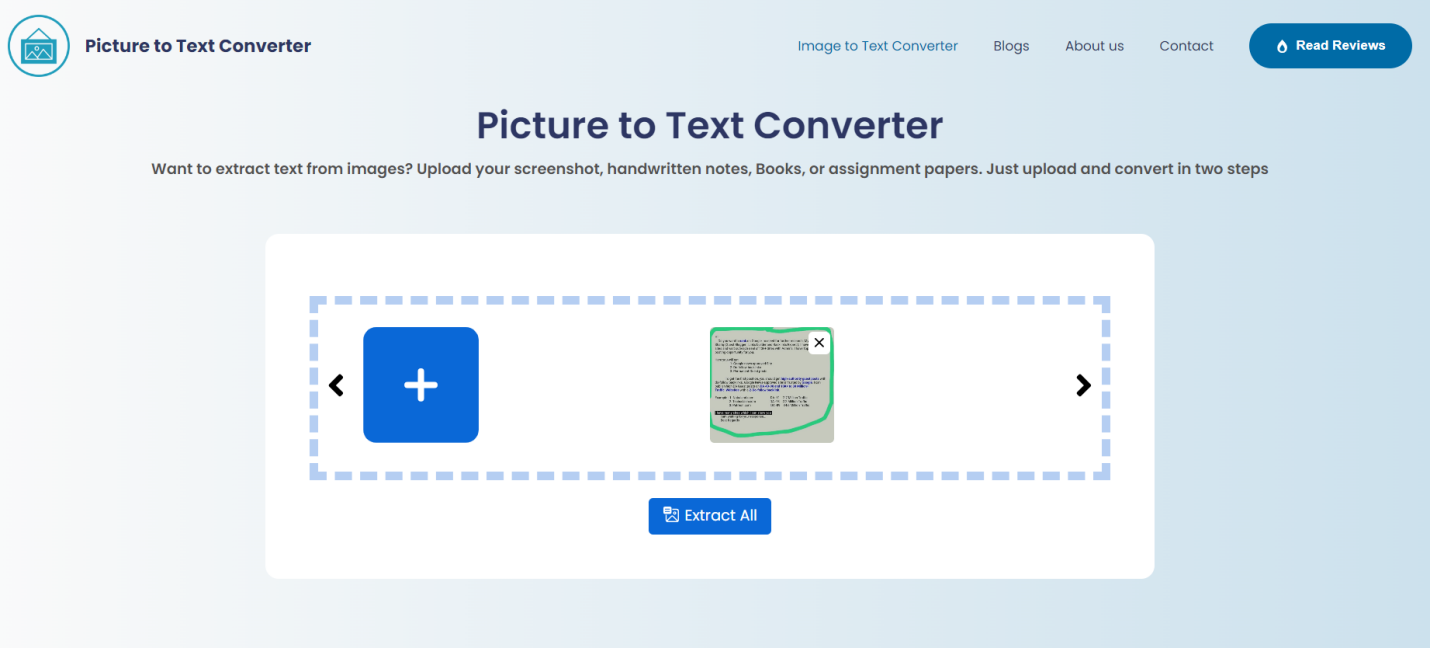
OCR Feature: An Image to text Converter lets you extract text from images. Import the screenshot into the tool, click on the “Extract” button, and copy the text.
-

-
OCR App:
-
Dedicated OCR App: Available for both iOS and Android, this app allows you to take photos or use existing images to extract text. Open the app, select the screenshot, and let it do the rest.
-
Is OCR Tool accurate?
Optical Character Recognition (OCR) tools have significantly improved in accuracy over the years, making them a reliable option for converting images or scanned documents into editable text. The accuracy of an OCR tool largely depends on several factors, including the quality of the input image, the complexity of the text, and the tool’s underlying algorithms.
High-quality OCR tools can achieve accuracy rates exceeding 90% for clear, printed text. Advanced OCR systems, powered by machine learning and AI, can even handle more complex tasks like recognizing handwritten text or processing documents with mixed fonts and layouts.
However, the accuracy may decrease if the input images are blurry, contain unusual fonts, or have low contrast. For optimal results, it’s crucial to use high-resolution images and ensure the text is as clear as possible.
Conclusion
Extracting text from screenshots doesn’t have to be a chore. Whether you use built-in OCR tools, third-party apps, or online services, there are plenty of options to make the process quick and easy. Choose the method that best fits your needs and device, and save yourself the effort of retyping.