
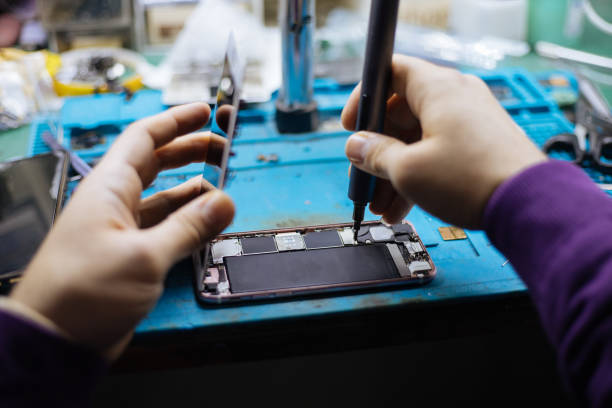
If there’s no response, try a force restart by pressing and holding the Power and Volume Down buttons (for iPhone 8 and later) or Home and Power buttons (for older models) until the Apple logo appears. If your iPhone still refuses to turn on, it might be a battery or hardware issue, requiring professional service from Mobile Xpert in Hialeah, Florida.
Dealing with a Frozen iPhone Screen
A frozen screen is often caused by software glitches, running too many apps, or outdated iOS versions. To resolve this, perform a force restart as mentioned above. If the problem persists, update your iOS via Settings > General > Software Update. If your device is still unresponsive, try connecting it to a computer and restoring it using iTunes or Finder. Be sure to back up your data before attempting a full restore to avoid data loss.
Fixing a Cracked or Unresponsive Touchscreen
A cracked screen can lead to touch issues, unresponsiveness, and even more significant internal damage. If your screen is unresponsive but not physically damaged, try cleaning it with a soft cloth and removing any protective screen covers. If that doesn’t work, check for software updates or reset the device settings (Settings > General > Reset > Reset All Settings). However, for physical damage, visit a reliable repair center like Mobile Xpert in Hialeah, Florida, where certified technicians provide expert screen replacement services quickly and efficiently.
Battery Draining Too Fast? Here’s What to Do
If your iPhone battery drains quickly, check for background apps consuming excessive power by going to Settings > Battery. Close unnecessary apps and enable Low Power Mode. Reducing screen brightness, turning off location services, and disabling unnecessary background refresh can also help extend battery life. If the issue persists, you may need a battery replacement. Mobile Xpert in Hialeah, Florida specializes in quick and efficient battery replacements, ensuring your device works like new.
iPhone Not Charging? Fix It Now
A non-charging iPhone may have issues related to the charging port, cable, or software. Start by cleaning the charging port with a soft brush or compressed air to remove dust and debris. Try using a different charger and cable to rule out accessory problems. If your iPhone still doesn’t charge, restart it and check for software updates. If none of these solutions work, your charging port may need professional repair, which Mobile Xpert in Hialeah, Florida can provide with precision and care.
Data Recovery After an iPhone Crash
If your iPhone crashes or gets stuck on the Apple logo, you may worry about losing your data. To fix this, connect your iPhone to a computer and use iTunes (or Finder on macOS) to update or restore it. If updating doesn’t work, use DFU mode (Device Firmware Update) by connecting your iPhone to a computer, putting it into DFU mode, and following on-screen instructions. Before attempting any restoration, ensure you have backed up your data to iCloud or iTunes.
Fixing Wi-Fi and Bluetooth Connectivity Problems
Having trouble with Wi-Fi or Bluetooth? Go to Settings > Wi-Fi/Bluetooth, turn them off, then back on. Forget and reconnect to your Wi-Fi network. If that doesn’t work, reset network settings via Settings > General > Reset > Reset Network Settings. If the issue persists, updating iOS or restoring your device may help. For persistent hardware-related issues, Mobile Xpert in Hialeah, Florida can diagnose and fix connectivity problems efficiently.
How to Recover Data from a Water-Damaged iPhone
Water damage can cause severe iPhone malfunctions, including data loss. If your phone gets wet, immediately power it off and dry it with a soft cloth. Avoid using heat sources like hairdryers. Place your iPhone in a sealed bag with silica gel packets to absorb moisture. If your device does not turn on after 24-48 hours, visit Mobile Xpert in Hialeah, Florida for professional data recovery and repair services.
Fixing a Slow iPhone Without Losing Data
A slow iPhone may result from excessive background processes, outdated software, or insufficient storage. Free up space by deleting unnecessary files and apps. Go to Settings > General > iPhone Storage to check storage status. Updating iOS and disabling unnecessary background app refresh can also improve performance. If speed issues persist, resetting all settings or seeking expert assistance may be necessary.
Mobile Xpert in Hialeah, Florida: Your Trusted Repair Partner
Located at 3001 W 12th Ave, Suite 5, Mobile Xpert in Hialeah, Florida, provides expert phone, tablet, and computer repair services. From screen replacements and battery changes to charging port fixes and data recovery, their certified technicians ensure fast and reliable repairs. With a 30-day warranty on services, you can trust them for high-quality solutions. Visit them today to restore your device efficiently.