
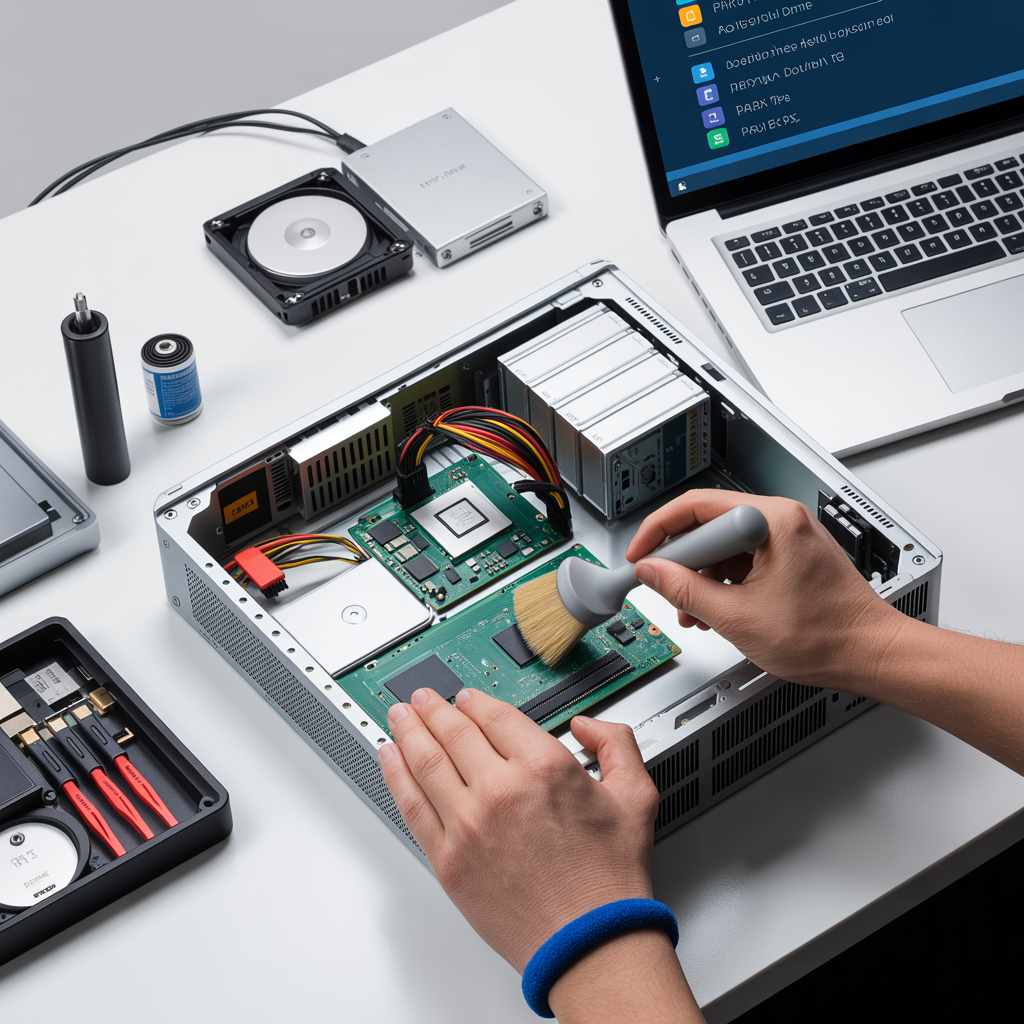
A slow computer can make simple tasks frustrating. Programs take forever to open, files lag when you move them, and even the mouse might freeze. But fixing a slow computer doesn’t mean you need to lose your data or spend a lot on repairs. With a few careful steps, you can bring your system back to life and keep everything safe. This guide covers real, effective ways to clean up your system, improve performance, and protect your files at the same time. You don’t need to be a tech expert to follow along, just take your time and apply each method carefully.
Check for Basic Hardware Issues
Before you start changing software settings, make sure your hardware is okay. Computers slow down for many physical reasons.
-
Overheating: Check that the fans are clean and running. Dust can block airflow, causing slow performance.
-
Memory issues: If your RAM is low, the system struggles to multitask. You can open fewer programs or upgrade the RAM.
-
Hard drive health: A failing hard drive slows everything. Run a disk check to make sure it’s still working properly.
-
Loose connections: Sometimes, cables or components are not connected tightly. Open your computer only if you know how.
Hardware problems are easy to miss, but they cause many slowdowns. Fixing these first keeps your computer stable.
Clean Up Unnecessary Files
Over time, your computer collects junk files such as temporary files, downloads, logs, and cache data. These take up space and make your system slower.
-
Open “Disk Cleanup” on Windows or “Storage Management” on macOS.
-
Delete temporary files, browser cache, and unused system files.
-
Empty the Recycle Bin or Trash.
-
Move large old files to an external drive or cloud storage.
Do not delete system folders or files you don’t understand. Always check the file type before deleting it. This way, you’ll free up space without risking your data.
Uninstall Unused Programs
Every program on your computer uses storage and sometimes memory in the background. Too many unused applications can slow startup time.
-
Go to “Add or Remove Programs” in Windows or “Applications” on a Mac.
-
Look for software you haven’t used in months.
-
Uninstall them carefully, checking that they’re not system tools.
Removing unnecessary apps not only frees up space but also reduces background processes. Your computer will start faster and respond better.
Disable Startup Programs
When your computer starts, many programs launch automatically. Most are not needed right away.
-
Open the Task Manager (Ctrl + Shift + Esc) and go to the “Startup” tab.
-
Disable programs with “High” impact that you don’t need at startup.
-
Restart your computer.
This single step often makes a big difference. You’ll notice faster boot time and smoother performance.
Run a Virus and Malware Scan
Viruses and malware are common causes of slow computers. They run in the background, eat resources, and sometimes steal data.
-
Update your antivirus software.
-
Run a full system scan.
-
Remove any threats found.
If you don’t have antivirus software, use Windows Defender or Malwarebytes. Avoid downloading random tools online, as they can cause more harm than good. Keeping your system clean also keeps your data safe.
Update Your System and Drivers
Updates fix bugs and improve performance. Outdated software often causes compatibility problems and slows down the system.
-
Check for operating system updates.
-
Update your hardware drivers, especially graphics, network, and chipset.
-
Restart after updates are installed.
Sometimes, slow performance is due to a missing or broken driver. Keeping everything updated helps the system run efficiently.
Check Your Browser
If your computer slows down mostly when using the internet, your browser might be the problem.
-
Clear the browser cache and history.
-
Remove unnecessary extensions or add-ons.
-
Update your browser to the latest version.
-
Limit the number of open tabs.
Browsers consume memory fast, especially with multiple tabs or extensions. Cleaning it up often gives an instant speed boost.
Manage Background Processes
Many programs keep running even after you close them. This wastes memory and CPU power.
-
Open Task Manager.
-
Check which programs are using the most memory and CPU.
-
Right-click and end unnecessary tasks.
Be careful not to close system processes. If you’re not sure what something does, leave it alone. Managing background processes helps your computer use resources efficiently.
Defragment or Optimize Your Hard Drive
If you have a traditional hard disk drive (HDD), it can become fragmented over time. That means data is scattered, making it slower to read.
-
Open “Defragment and Optimize Drives” in Windows.
-
Choose your main drive and click “Optimize.”
If you have an SSD (solid-state drive), do not defragment. SSDs manage data differently and don’t need it. Instead, use “Optimize” to help it clean up unused space.
Check for System Errors
Windows and macOS have built-in tools to fix common system problems.
-
On Windows, open Command Prompt and type
sfc /scannow. -
On macOS, use “Disk Utility” and select “First Aid.”
These scans find and repair damaged system files. Running them regularly prevents performance issues and keeps your system stable.
Turn Off Visual Effects
Pretty graphics and animations look nice but can slow older computers.
-
Go to “System Properties” > “Advanced System Settings.”
-
Under “Performance,” click “Settings.”
-
Select “Adjust for best performance.”
This will turn off most effects and free up system resources. You’ll lose some visual polish, but your computer will feel faster.
Free Up RAM Without Restarting
If you’ve been working for hours and your computer feels sluggish, it might be low on memory.
-
Close heavy programs like browsers or video editors.
-
Open Task Manager and end unused background tasks.
-
Clear your clipboard data.
These small steps refresh your system without restarting, which helps when you’re in the middle of work.
Move Files to External or Cloud Storage
Large files slow your computer’s performance, especially if your disk is nearly full. Keep only what you need daily.
-
Store old videos, photos, and backups on an external hard drive.
-
Use cloud services like Google Drive or OneDrive.
-
Make sure your important files are backed up regularly.
This keeps your computer light and responsive while protecting your data from accidental loss.
Reset Browser and App Settings
Some apps and browsers accumulate junk data or corrupted settings. Resetting them often improves performance.
-
For browsers, go to Settings > Reset.
-
For apps, uninstall and reinstall if they crash often.
A reset clears temporary files and bugs without touching your personal files.
Upgrade Hardware for Lasting Speed
If your computer is several years old, software fixes might not be enough. Hardware upgrades can give it new life.
-
Add more RAM.
-
Replace your HDD with an SSD.
-
Upgrade your graphics card if you use design or gaming software.
These upgrades are affordable and safe if done properly. You can also ask a technician for help if you’re unsure.
Backup Your Data Regularly
Before trying advanced fixes, always back up your files. Even a small mistake can lead to data loss.
-
Use an external drive or cloud storage.
-
Schedule automatic backups weekly.
-
Verify that backups work before deleting anything.
Keeping your files safe means you can fix performance problems without fear of losing something important.
Use Safe Cleanup Tools
Many online “cleaners” promise to fix your computer. Some are fine; many are risky.
-
Stick to trusted tools like CCleaner, BleachBit, or the system’s own cleanup utility.
-
Avoid software that claims to “boost” performance magically.
-
Always create a restore point before cleaning the system.
This ensures you can undo changes if something goes wrong.
Reinstall Your Operating System (If Needed)
If nothing else works, reinstalling your system might help. It’s the most powerful way to remove all junk and bugs.
-
Backup your files to an external drive.
-
Create installation media for Windows or macOS.
-
Reinstall the system cleanly.
After reinstalling, copy your files back. This gives your computer a fresh start without risking your data.
Get Professional Help
Sometimes, the slowdown comes from a deeper issue like hardware failure or corrupted system parts. If you’re unsure, it’s better to ask a professional. A technician can check your system safely and fix the problem without deleting your files.
If you live in Florida, you can also search for Computer Repair in Aventura to find experts who handle both performance and data protection issues effectively.
Keep Good Habits
After you fix your computer, keep it running smoothly by following simple habits:
-
Restart your computer at least once a week.
-
Avoid downloading from unknown sources.
-
Keep your antivirus updated.
-
Regularly delete temporary files.
-
Update your system and drivers.
Good maintenance prevents most slowdowns and keeps your data safe.
Final Thoughts
You don’t need to risk your data to fix a slow computer. Most performance issues come from clutter, outdated software, or background processes. By following simple steps like cleaning files, managing startup programs, checking hardware, and updating your system, you can restore speed safely. Always back up your files before major changes, and don’t hesitate to get help if the problem seems too complex. A little care goes a long way in keeping your computer fast and reliable.
Techy Aventura offers fast, expert electronic repairs with a free diagnosis and same-day service for phones, tablets, laptops, game consoles, and wearables. We fix iPhones, Google Pixels, Samsung devices, Apple & Windows PCs, Sony & Xbox consoles, handling screen, battery, charging port, and water damage repairs. Choose a 15-minute fix or a full repair with a lifetime warranty. Visit Techy Aventura today!