
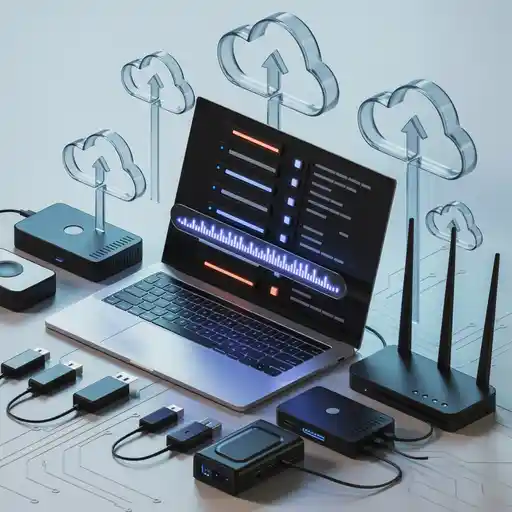
Data loss can happen at any time. One small mistake, a sudden crash, or a hardware failure can wipe out months or years of work. Backing up your laptop data isn’t optional anymore; it’s a necessity. The good thing is that modern backup solutions make it easy to protect files without needing advanced technical skills. You can choose between cloud storage, external drives, or automated backup tools. Each option offers a different level of control, security, and accessibility. This guide explains the best data backup solutions for laptop users. You’ll learn which tools are most reliable, how they work, and how to choose the one that fits your needs.
Why Backing Up Laptop Data Matters
Your laptop is vulnerable to damage, theft, or software errors. A spilled drink, a broken hard drive, or malware can destroy your files. That’s why keeping a backup is so important. It’s your safety net. Without one, recovering lost data can be expensive or impossible.
Here’s why every laptop user should back up their data:
-
Hardware failure – Laptops wear out over time. Hard drives and SSDs can stop working suddenly.
-
Accidental deletion – Files can get deleted by mistake. A backup makes it easy to recover them.
-
Malware attacks – Ransomware can lock or destroy your data. A backup keeps you safe.
-
System crashes – Software updates or corrupted files can crash your system without warning.
-
Theft or loss – If your laptop gets stolen or lost, backups ensure your work isn’t gone forever.
Having a reliable backup strategy gives peace of mind. It’s not about if something goes wrong, it’s about when.
Cloud Backup Solutions for Laptop Users
Cloud backup stores your files online, protecting them from local damage. It’s one of the easiest and safest ways to secure data.
1. Google Drive
Google Drive offers free storage with every Google account. It syncs documents, photos, and videos across devices. The desktop app can automatically back up selected folders. You can access your files anywhere, even if your laptop is lost.
Pros:
-
Easy to use
-
Works on all systems
-
Auto-syncs in real time
Cons:
-
Limited free storage
-
Needs internet access
2. Dropbox
Dropbox is known for its reliability and speed. It creates a folder on your laptop that syncs automatically with the cloud. It’s great for collaboration and sharing files.
Pros:
-
Fast syncing
-
Works well with teams
-
Good version history
Cons:
-
Can get pricey for large storage
-
Requires constant internet connection
3. OneDrive
Microsoft OneDrive comes pre-installed on most Windows laptops. It integrates with Microsoft Office, making it simple for users who already use Word, Excel, or PowerPoint.
Pros:
-
Integrated with Windows
-
Affordable plans
-
Reliable and secure
Cons:
-
Slower syncing for large files
-
Limited control over file versions
4. iCloud
Apple users can rely on iCloud for automatic backups. It’s ideal for MacBook users who want a seamless backup solution.
Pros:
-
Simple setup
-
Automatically syncs with Apple devices
-
Secure encryption
Cons:
-
Limited free storage
-
Not ideal for non-Apple users
Cloud backup is perfect for those who want automatic protection without managing hardware.
External Drive Backup Options
Some people prefer physical storage for full control. External drives are portable and affordable. You don’t need an internet connection, and data transfer is fast.
1. Portable Hard Drives
These drives offer large storage at low cost. You can plug them in, copy files, and disconnect. Many include built-in backup software.
Pros:
-
Affordable
-
Fast file transfer
-
Easy to use
Cons:
-
Can be lost or damaged
-
Manual backups can be forgotten
2. Solid-State Drives (SSD)
SSDs are faster and more durable than hard drives. They’re ideal for users who need speed and reliability.
Pros:
-
Shock-resistant
-
Faster than HDDs
-
Compact and lightweight
Cons:
-
More expensive per GB
-
Limited write cycles
3. Network Attached Storage (NAS)
NAS is like having your own private cloud at home. It connects to your Wi-Fi and stores backups from all your devices.
Pros:
-
Centralized backup for multiple devices
-
Access from anywhere
-
High storage capacity
Cons:
-
Expensive setup
-
Needs maintenance and setup time
If you want total control and security, external drives are a solid choice. Just remember to keep one copy off-site in case of theft or fire.
Hybrid Backup Solutions
A hybrid backup combines local and cloud storage. It’s the most reliable method since you get the best of both worlds: fast recovery and off-site safety.
Why Hybrid Backups Are Useful
-
If your external drive fails, you still have a cloud copy.
-
If your internet is down, your local backup still works.
-
It balances speed, cost, and security.
Example setup:
Use an external SSD for daily backups and a cloud service like Google Drive for weekly or monthly backups.
This mix keeps your data safe from both physical and digital risks.
Best Automated Backup Software
Manually copying files takes time. Backup software automates the process. These tools run in the background and create scheduled backups so you don’t have to remember.
1. Acronis Cyber Protect Home Office
Acronis combines full-disk imaging and cloud backup. It also includes antivirus protection.
Pros:
-
Advanced options for full system restore
-
Real-time protection
-
Cloud and local support
Cons:
-
Paid software
-
Can use lots of storage
2. Backblaze
Backblaze automatically backs up everything on your laptop to the cloud. It’s simple and affordable.
Pros:
-
Unlimited storage
-
Easy to set up
-
Runs quietly in background
Cons:
-
Internet needed for restore
-
Limited version control
3. EaseUS Todo Backup
EaseUS offers local and cloud backup options. You can schedule backups daily or weekly.
Pros:
-
User-friendly
-
Multiple backup modes
-
Good for small businesses
Cons:
-
Slower upload speeds
-
Some features require payment
Automated backup tools make data protection effortless. Once set up, they handle everything quietly.
How to Create a Backup Plan
Having tools isn’t enough. You need a plan that fits your habits and devices. A good backup strategy is simple, consistent, and repeatable.
Here’s how to make one:
-
Decide what to back up – Focus on important files, documents, and photos.
-
Pick your storage method – Cloud, external drive, or both.
-
Schedule automatic backups – Daily or weekly, depending on file changes.
-
Check backups regularly – Make sure your data is actually being saved.
-
Test recovery – Try restoring a file to confirm it works.
Following this plan ensures your data stays safe and accessible whenever you need it.
Tips for Keeping Backups Secure
Backups protect data, but only if they stay secure. Hackers and malware can target backup files too.
Here are simple ways to protect them:
-
Use encryption – Encrypt both local and cloud backups.
-
Set strong passwords – Don’t reuse passwords across services.
-
Keep one copy offline – Store it where others can’t access it.
-
Update software – Outdated systems are easy to hack.
-
Avoid public Wi-Fi – Don’t upload backups over unsafe networks.
These steps keep your files safe from digital threats.
Common Backup Mistakes to Avoid
Even with the best tools, mistakes can ruin backups. Avoid these common errors:
-
Relying on one backup location – Always keep at least two copies.
-
Forgetting to schedule backups – Set reminders or use automation.
-
Not checking backup success – Backups can fail silently.
-
Using unreliable drives – Cheap drives often fail early.
-
Ignoring security – Unprotected backups can expose sensitive data.
Being careful with these details saves time and stress later.
When to Seek Professional Help
Sometimes backups or restorations go wrong. If your laptop doesn’t start, or you can’t access backup data, professional help is needed. Services like laptop repair in Rowlett can handle both hardware damage and data recovery safely. It’s better to get help early before the problem gets worse.
Final Thoughts
Data backup isn’t complicated, but it requires consistency. Cloud storage works well for accessibility, external drives are best for control, and hybrid setups offer both. The main goal is to protect your files before something bad happens. Once your backup plan is in place, you can work without worry.
Fast and reliable cell phone, computer, tablet, and game console repair in Rowlett, TX 75088. Techy Rowlett fixes all electronics with a lifetime warranty.