
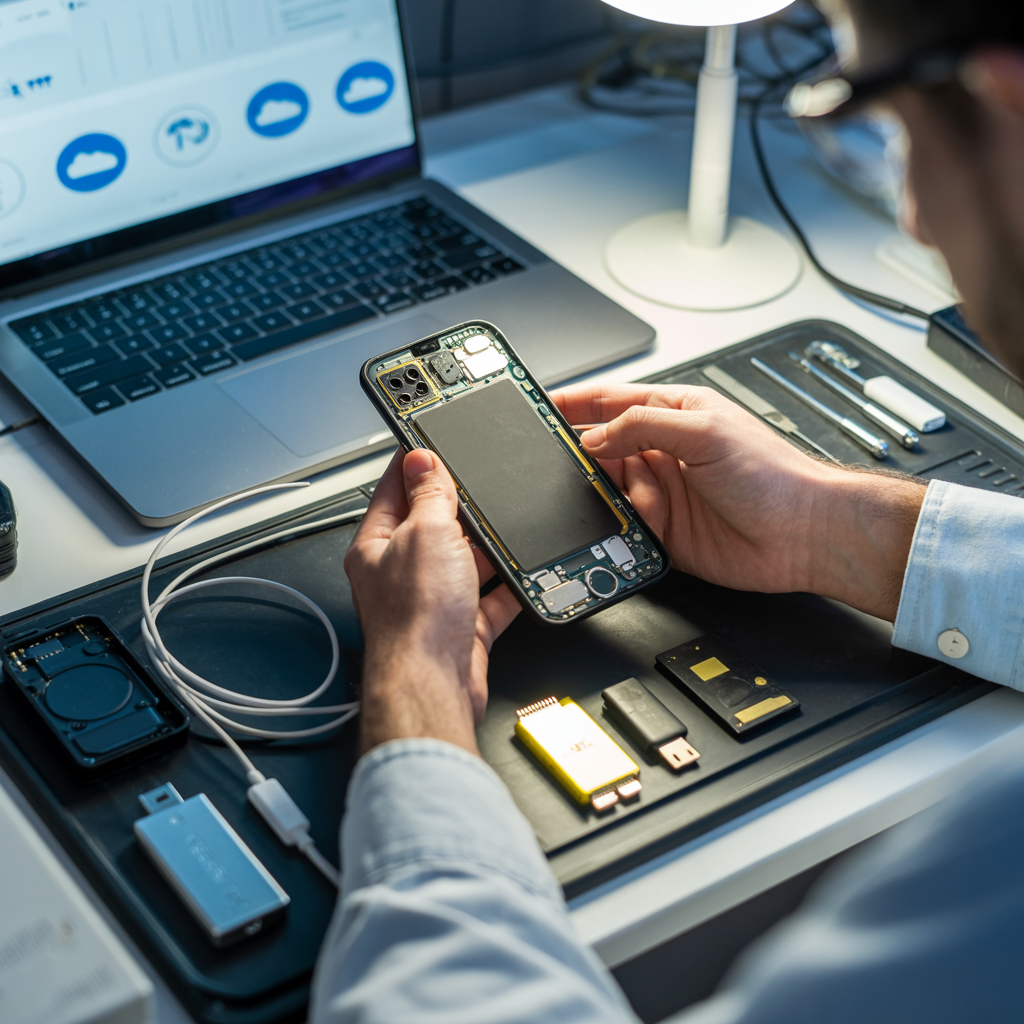
When a phone stops working, most people rush to get it fixed. But what many forget is that repairing a phone can risk the loss of personal data—photos, messages, contacts, and files that may not be backed up anywhere else. Losing data can feel worse than losing the phone itself. That’s why protecting information before, during, and after a repair matters. This guide explains simple, practical steps to prevent data loss when you hand over your device for repair. You’ll learn what to back up, how to secure sensitive data, what to expect from technicians, and what precautions make sense before visiting any repair shop.
Understand Why Data Loss Happens During Repair
Data loss isn’t always intentional. Sometimes, it’s a side effect of the repair process. When a phone’s hardware or software fails, technicians often need to reset it, flash firmware, or replace damaged parts. These steps can erase everything.
Here are the most common causes:
-
Factory resets – Technicians may perform resets to test or reinstall the system.
-
Hardware replacements – Changing a motherboard or storage chip can remove stored data.
-
Water damage – Liquid exposure can destroy memory components.
-
System corruption – Software repairs might overwrite or format your data.
-
Negligence or oversight – A simple mistake can lead to permanent data loss.
Knowing these risks helps you act early. Once data is gone from damaged internal memory, recovery may be impossible without specialized tools or costly services.
Back Up Everything Before Repair
Backing up is the most reliable way to protect data. It’s quick, and anyone can do it without advanced skills.
Cloud Backup
Use your phone’s built-in cloud service. iPhones use iCloud; Android phones have Google Drive. Make sure automatic backup is turned on. Check your storage space and manually back up one last time before repair.
Local Backup
Store your data offline. Connect your phone to a computer and copy photos, videos, contacts, and important files. You can also use an external hard drive or a USB OTG flash drive.
App Data Backup
Some apps, like WhatsApp, have their own backup settings. Open each app you rely on and back it up separately. This avoids losing chat history or settings.
Backing up takes a few minutes but saves you from permanent loss. Do this every time, even if the repair seems minor.
Remove or Encrypt Sensitive Data
Not all repairs require technicians to access your data, but it’s still smart to secure it. If you can’t erase everything, you can protect your privacy in other ways.
Encrypt Your Phone
Encryption locks your data with a password. Even if someone copies your files, they can’t open them without the code. Most modern phones already have encryption enabled by default, but it’s worth confirming in your settings.
Remove SIM and Memory Cards
Your SIM card stores contacts, and your memory card stores media. Remove both before handing over the device. It’s a simple step that prevents accidental data wipes.
Sign Out of Accounts
Sign out of email, cloud, and social media apps. This limits access to personal data. Some phones let you use a guest mode or privacy lock to restrict certain apps without deleting them.
These steps keep personal information safe even if someone accesses the phone physically.
Use a Trusted and Transparent Repair Service
Not all repair shops treat data privacy seriously. Choosing the right technician matters just as much as taking backups.
When you look for cell phone repair services, ask these questions:
-
Do they have a privacy policy or data protection process?
-
Can they repair without resetting the phone?
-
Will they inform you before deleting data?
-
Do they provide a written repair report or receipt?
Always check reviews and avoid cheap, unverified stalls that offer “quick fixes.” Reputable shops are more likely to follow safety steps and ask for permission before touching data-sensitive components.
Confirm If Data Reset Is Necessary
Before leaving your phone, ask if the repair will involve resetting or reflashing the system. If the answer is yes, you must back up everything first. Some issues—like screen or battery replacements—usually don’t affect data. But motherboard or software issues might.
If possible, request that the technician repair without formatting the device. Some shops can use diagnostic tools to fix hardware without wiping memory. The key is clear communication. Don’t assume your data will survive the repair unless confirmed.
Use Data Protection Tools and Software
Data protection doesn’t stop at backups. You can use simple tools that add extra safety layers.
Anti-Theft Apps
Install a trusted anti-theft or phone-tracking app. It lets you lock or wipe your phone remotely if needed. This is useful if your phone gets lost during service transit.
Password Managers
If you must hand over your phone unlocked for testing, use a password manager to protect sensitive information. You can clear stored passwords temporarily.
Secure Folders
Some phones offer secure folders where you can move private files. They stay locked even if the main device is open. Use this feature before sending the phone in.
These tools give you control and reduce risks even when others handle your phone.
Keep a Record of Your Device Condition
Before leaving your phone for repair, document its condition. Take photos showing the phone’s body, screen, and accessories. Also note the current software version, IMEI number, and storage level.
This record protects you if something changes during repair—like missing files or new scratches. It’s a small but useful precaution.
You can also request a receipt that includes:
-
The technician’s name
-
Time and date of drop-off
-
Work description
-
Agreement about data handling
Paper trails make accountability easier.
Turn Off Unnecessary Connections
Disconnect your phone from paired devices and remove linked accounts. For example:
-
Unpair from Bluetooth headsets and smartwatches
-
Remove access from computers or tablets connected through cloud services
-
Turn off auto-sync for email and gallery apps
This step ensures no new data syncs or gets deleted accidentally during repair.
Check Repair Shop Policies on Privacy
Some repair centers have written policies that explain how they handle customer data. Read them before you agree to service.
Look for these points:
-
Do they store your device overnight?
-
Are technicians supervised?
-
Do they use password-protected test devices?
-
Do they inform you before resetting software?
If they refuse to explain, find another service. A transparent technician will never hesitate to discuss privacy practices.
Avoid Public Repair Kiosks
Quick-fix stalls or mobile kiosks often lack privacy controls. They might use public computers for flashing firmware or leave devices unattended. While convenient, they carry higher data risks.
It’s safer to use a certified center or a trusted independent shop. Authorized service centers have repair logs and restricted data access. That means your personal information is less likely to be viewed or copied.
Don’t Share Unlock Codes Unnecessarily
Some repairs, like battery or display replacements, don’t require unlocking your phone. If possible, lock your device and inform the technician to contact you if access is needed.
If unlocking is required for diagnostics, create a temporary passcode. Change it immediately after repair. Never give out passwords for personal accounts.
Inspect Your Phone After Repair
When you get your phone back, check it carefully before leaving the shop.
Here’s what to do:
-
Turn it on and confirm your data is still there.
-
Test major apps and camera roll.
-
Verify no unknown apps were installed.
-
Check settings and privacy options.
If you notice missing files or strange activity, report it immediately. Quick action increases the chance of recovery or accountability.
Restore Backup if Data Was Lost
If your data is missing after repair, don’t panic. That’s why backups exist. Restore your files from cloud or local storage. Follow these steps:
-
Log in to your backup service.
-
Select the most recent backup.
-
Wait for the restoration to finish before opening apps.
Keep your phone plugged in during the process. It may take time, especially for large media files. Once restored, recheck your settings and privacy options.
Use Reliable Accessories After Repair
Sometimes, poor accessories can cause damage that leads to repeated repairs. Use certified chargers, cables, and batteries that match your phone model. Avoid third-party items that heat up or don’t fit properly.
Good accessories reduce the chance of future hardware issues and data loss.
Keep Software Updated
Software updates protect your phone from bugs and security risks that may cause data corruption. Always install updates after repair. Updates fix vulnerabilities and help prevent problems that lead to unexpected data loss.
Enable Automatic Backup Going Forward
Don’t wait for a repair to back up your data again. Turn on automatic backups permanently. This ensures new photos, messages, and files are stored safely every day.
Here’s how:
-
Enable automatic sync for cloud storage.
-
Set reminders to back up manually once a week.
-
Check your storage plan and expand it if needed.
Once this becomes routine, losing data becomes less of a worry.
Handle Old Parts Responsibly
If your repair involves part replacements, ask to keep the old parts. For example, if your phone’s motherboard or storage chip is replaced, don’t leave it behind. It may still contain traces of your data.
Responsible handling prevents data leaks through discarded components.
Keep an Eye on Post-Repair Behavior
After you’ve taken your phone back, monitor its performance for a few days. Watch for any signs of tampering, like:
-
Strange app behavior
-
Battery draining faster than usual
-
New permissions appearing
-
Unexpected pop-ups
If something seems off, reset the phone yourself and restore your data from backup. It’s a quick way to regain control.
Educate Yourself for Next Time
Knowing how phones store data helps you make smarter choices. Internal storage, SD cards, and cloud systems work differently. Learn where your files actually live and how to protect each location.
You don’t need to be a technician to keep data safe. You just need to stay aware, back up regularly, and be cautious when handing your phone to others.
Final Thoughts
Preventing data loss during phone repair isn’t complicated. It’s about being prepared and making smart choices. Back up your information, choose a trusted repair shop, and take a few protective steps before handing over your device. These actions keep your private files safe and give you peace of mind, no matter what kind of repair your phone needs.