
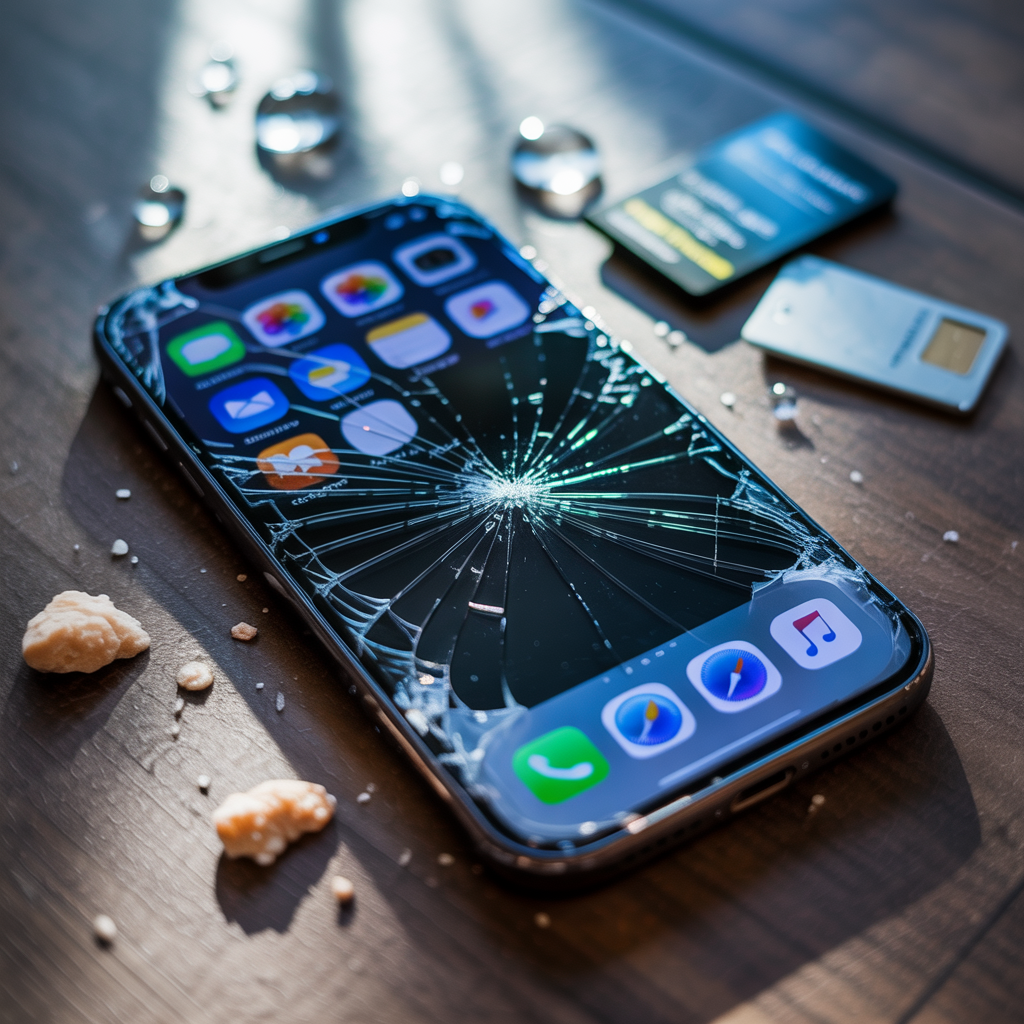
iPhones store much of our lives, photos, contacts, messages, and files. When something goes wrong, losing that data can feel like losing a part of your memory. Whether it’s accidental deletion, a system crash, or water damage, data loss can happen anytime. Knowing the common causes helps you avoid them. This article explains typical iPhone data loss scenarios, what leads to them, and simple steps to keep your information safe. You’ll also find practical prevention tips that don’t require technical skills.
Accidental Deletion of Files
Many people lose data because they delete files by mistake. It often happens when trying to clear space or organize folders. Photos, notes, or contacts can disappear with one wrong tap.
How it Happens
-
Deleting photos or messages without backup.
-
Removing an app that stores files locally.
-
Clearing folders from Files or iCloud Drive accidentally.
How to Prevent It
-
Use iCloud backup or iTunes regularly.
-
Before deleting, double-check what’s selected.
-
Turn on the “Recently Deleted” feature in Photos, it keeps deleted items for 30 days.
-
Avoid deleting apps that store important data unless you’ve backed them up.
Accidental deletion is the most common cause of data loss because it’s easy to make small mistakes. Backups are your best protection.
iOS Update Failure
iOS updates bring better security and new features. But sometimes, the update process fails, causing data loss. When updates stop midway or your phone freezes, it may reset or erase some data.
How it Happens
-
Interrupting updates due to low battery or poor Wi-Fi.
-
Installing beta versions that are unstable.
-
System corruption during installation.
How to Prevent It
-
Charge your iPhone above 60% before updating.
-
Use a stable Wi-Fi connection.
-
Back up using iCloud or iTunes before every update.
-
Avoid installing unofficial or beta software unless necessary.
If an update goes wrong, restore your iPhone using iTunes or Finder. But it’s easier to avoid this issue with regular backups.
Water Damage
Water can ruin both your iPhone and your stored data. Even if the device turns on, moisture may slowly damage the internal storage.
How it Happens
-
Dropping the phone into water or a wet surface.
-
Using it in rain without protection.
-
Spills from drinks or cleaning products.
How to Prevent It
-
Keep your iPhone in a waterproof case when outdoors.
-
Avoid using it near pools or sinks.
-
If it gets wet, turn it off immediately and dry it gently.
-
Don’t use a hairdryer, it can push water deeper.
-
Visit a trusted repair shop if the phone doesn’t start.
Data recovery from water-damaged phones is tricky. That’s why off-device backups matter.
Physical Damage
Dropping an iPhone can do more than break the screen, it can damage the memory chip that stores your files.
How it Happens
-
Hard falls from tables, cars, or stairs.
-
Cracks that reach the internal board.
-
Pressure damage from sitting on the phone.
How to Prevent It
-
Always use a shockproof case.
-
Don’t keep your phone in your back pocket.
-
Handle it with care during workouts or outdoor trips.
-
Use screen protectors that also absorb shocks.
If your iPhone stops working after a fall, get help from a technician. Trying to restart it multiple times might make recovery harder.
Jailbreaking and Unauthorized Apps
Jailbreaking gives more control but weakens security. It removes Apple’s built-in protections, increasing the chance of crashes and data corruption.
How it Happens
-
Installing unverified apps.
-
System file modifications.
-
Malware or corrupted software.
How to Prevent It
-
Avoid jailbreaking, Apple updates can fix many customization issues.
-
Only install apps from the App Store.
-
Keep antivirus software on your computer if you sync your iPhone.
-
Regularly back up your phone in case an app causes issues.
Once the system is altered, you might not be able to restore your phone without losing everything. Prevention here is simple, don’t jailbreak.
Storage Overload
When your iPhone’s storage is full, performance slows down. This can cause app crashes, failed saves, and data corruption.
How it Happens
-
Too many apps or large videos.
-
Cached files not cleared.
-
Ignoring “Storage Almost Full” warnings.
How to Prevent It
-
Delete unused apps and old downloads.
-
Move photos and videos to iCloud or your computer.
-
Clear cache from Safari and other apps.
-
Keep at least 10% of your total storage free.
If your phone freezes during storage overload, restart it before deleting files. Avoid forced deletions, they may remove system data.
Malware and Corrupted Apps
Though iPhones are secure, malware can still sneak in through unsafe links or unverified apps. Once infected, data may be stolen, encrypted, or erased.
How it Happens
-
Clicking on suspicious links in messages.
-
Downloading files from untrusted sites.
-
Using fake apps that request permissions they shouldn’t.
How to Prevent It
-
Don’t click unknown links.
-
Check app permissions before granting access.
-
Keep iOS updated to the latest version.
-
Avoid connecting to public Wi-Fi without VPN.
If you suspect malware, remove recent apps and restart your device. You can also restore from a clean backup.
System Crashes and Software Glitches
Sometimes, software bugs can cause your iPhone to crash or restart suddenly. When this happens during saving or syncing, files may disappear.
How it Happens
-
Conflicts between apps.
-
Old iOS versions with known bugs.
-
Overloaded background processes.
How to Prevent It
-
Keep your iOS updated.
-
Restart your phone regularly to clear background activity.
-
Remove apps that frequently crash.
-
Use iCloud syncing for extra safety.
Most glitches can be fixed with updates or resets, but backups remain essential.
Forgotten Passcodes and Locked Devices
Getting locked out of your own iPhone is frustrating. When people reset their phones to regain access, they often lose their data.
How it Happens
-
Forgetting the passcode after too many failed attempts.
-
Children entering wrong passwords.
-
Restoring the phone without iCloud backup.
How to Prevent It
-
Write down your passcode somewhere safe.
-
Use Face ID or Touch ID for easier access.
-
Back up data before changing security settings.
-
If locked, don’t attempt too many retries, use recovery mode.
Resetting without a backup means permanent data loss. Always back up before major changes.
Theft or Loss of the Device
Losing your iPhone or having it stolen can mean losing everything if it wasn’t backed up. Even if you recover it, data may be deleted by the thief.
How it Happens
-
Misplacing the phone in public areas.
-
Theft from bags or cars.
-
Turning off “Find My iPhone.”
How to Prevent It
-
Enable “Find My iPhone” for location tracking.
-
Use a strong passcode.
-
Back up automatically using iCloud.
-
Set up two-factor authentication for Apple ID.
If stolen, use “Find My iPhone” to erase data remotely. It’s the best way to protect your information.
iTunes or iCloud Sync Errors
Syncing errors sometimes delete or replace existing files. Users might end up with partial backups or duplicate issues.
How it Happens
-
Interrupted syncs due to disconnection.
-
Using different Apple IDs on multiple devices.
-
Incomplete backups overwriting full ones.
How to Prevent It
-
Don’t disconnect during syncing.
-
Use the same Apple ID on all your devices.
-
Verify backups before deleting old ones.
-
Check iCloud storage space regularly.
When syncing errors happen, restore from your most recent verified backup.
Sudden Factory Reset
Sometimes, users perform a factory reset to fix an issue without realizing it erases all data. It’s common when troubleshooting or preparing the device for sale.
How it Happens
-
Misunderstanding reset options.
-
Resetting through recovery mode by mistake.
-
Selling or gifting a phone before backup.
How to Prevent It
-
Read on-screen prompts carefully before resetting.
-
Back up data before any reset.
-
Use “Erase All Content and Settings” only when ready to start fresh.
-
Keep iCloud backups on before making major changes.
Factory resets are final. Once done, only backups can restore lost files.
Hardware Failures
Sometimes data loss comes from internal failures like damaged storage chips or faulty batteries. These usually happen without warning.
How it Happens
-
Aging hardware.
-
Faulty charging cycles.
-
Overheating or short circuits.
How to Prevent It
-
Keep your iPhone away from direct heat.
-
Replace batteries on time.
-
Avoid using unverified charging cables.
-
If your phone feels unusually hot, turn it off.
When hardware fails, professional repair or data recovery services may help. This is where reliable shops like iPhone Repair in Hialeah come in handy.
How to Back Up and Restore iPhone Data
Backing up your data ensures you can recover it even after total loss. Apple gives two main ways, iCloud and iTunes (or Finder on macOS).
iCloud Backup
-
Connect to Wi-Fi.
-
Go to Settings > [Your Name] > iCloud > iCloud Backup.
-
Tap “Back Up Now.”
-
Make sure automatic backup is turned on.
iTunes or Finder Backup
-
Connect your iPhone to your computer.
-
Open iTunes or Finder.
-
Select your device, then “Back Up Now.”
-
Save the backup to your computer.
Keep at least one iCloud and one local backup. That way, if one fails, the other can restore your data.
Tips to Keep Your iPhone Data Safe Long-Term
-
Back up weekly.
-
Avoid third-party repair tools that claim to recover data.
-
Keep your iPhone updated.
-
Store critical files on both iCloud and an external drive.
-
Don’t connect to untrusted computers.
-
Enable “Find My iPhone” for remote access.
-
Use two-factor authentication for Apple ID.
-
Regularly review your app permissions.
Good habits make a difference. Preventing data loss is easier than fixing it afterward.
When You Need Professional Help
Sometimes, no matter what you do, your iPhone might still lose data due to serious hardware or software problems. If your device won’t turn on, keeps restarting, or has physical damage, seek professional help. Certified technicians can open your phone safely and recover data when possible. Avoid trying to repair it at home, it can make recovery harder.
Techy West Hialeah offers fast, expert electronic repairs with a free diagnosis and same-day service for phones, tablets, laptops, game consoles, and wearables. We fix iPhones, Google Pixels, Samsung devices, Apple & Windows PCs, Sony & Xbox consoles, handling screen, battery, charging port, and water damage repairs. Choose a 15-minute fix or a full repair with a lifetime warranty. Visit Techy West Hialeah today!